
If one over-permissioned admin can change your backup vault in the middle of the night, it isn’t a recovery strategy. This runbook gives you a practical sequence for Azure Backup immutability and Resource Guard, so you can harden a vault with minimal disruption and a clear rollback path.
Why Azure Backup immutability matters now
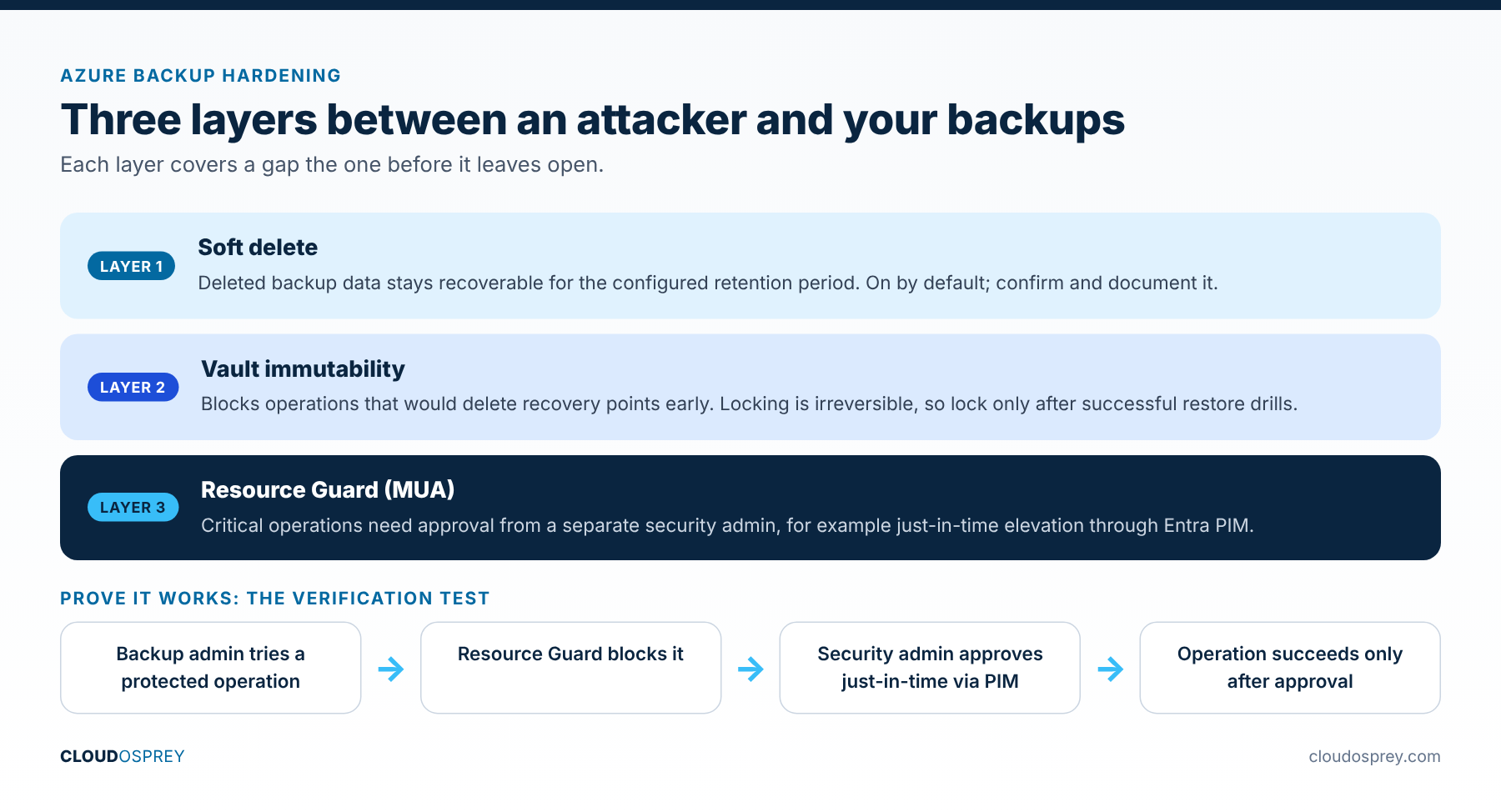
Microsoft’s Azure Backup guidance stresses three layers that work best together: soft delete, immutability and multi-user authorization (MUA) with Resource Guard. Together they limit the damage from accidental deletion, rushed changes and malicious actions against recovery points.
One caveat up front: immutability and MUA protect against destructive control-plane actions. They don’t replace restore testing, runbooks or identity hygiene.
Layered vault protection
VMs, databases and files back up to the vault.
Recovers from accidental deletion.
Blocks destructive changes to retained recovery points.
Adds a second approval boundary for critical operations.
What this runbook configures
- Provider registration and vault prerequisites.
- Vault immutability, with a plan for when to lock it.
- Resource Guard MUA for critical operations.
- A controlled test to prove the guardrails work.
Preflight checklist
| Check | Target state | Why it matters |
|---|---|---|
| Resource providers | Microsoft.RecoveryServices and Microsoft.DataProtection registered | MUA and vault operations can fail when providers are missing. |
| Role separation | The backup admin doesn’t hold Resource Guard permissions | MUA is meaningless if one identity can approve itself. |
| Region alignment | Resource Guard and vault in the same region | Required for the supported MUA configuration. |
| Change window | Approved test and rollback window documented | Prevents half-configured controls nobody can support. |
Step-by-step hardening
1. Confirm soft delete
Microsoft enforces soft delete by default on Recovery Services vaults as part of its secure-by-default approach, with configurable retention. Confirm the vault setting and document the retention period for audit and operations.
2. Enable immutability on the vault
Enable immutability and confirm workload support in your region. Locking immutability is irreversible, so plan when to do it, for example after two successful restore drills. Immutability blocks operations that would delete recovery points early.
3. Deploy Resource Guard
Create Resource Guard under a security-admin identity, separate from the backup admin. Microsoft recommends separation of duties and allows stronger isolation by placing Resource Guard in a separate subscription or tenant; the same-region requirement still applies.
4. Associate the vault and protect critical operations
Associate the vault with Resource Guard and review the protected operations. Keep mandatory operations protected and avoid exclusions unless there’s a documented, approved business reason.
5. Run a controlled verification test
- Attempt a protected operation from a backup-admin account without Resource Guard access.
- Confirm the operation is blocked.
- Grant just-in-time approval through your process, for example Entra PIM.
- Re-run it and confirm it succeeds only after approved elevation.
Common pitfalls
- The same team is Contributor on both the vault and Resource Guard. That isn’t MUA; it’s paperwork.
- Immutability is on, but no restore drill has run. You’ve protected retention without proving recovery.
- Provider registration was skipped, burning change-window time on avoidable failures.
Operations handoff
Record these in your runbook before calling it done:
- Vault name, subscription, region and workload scope.
- Immutability status and the date of the lock decision.
- Resource Guard owner group, approval workflow and emergency path.
- Protected operations, with any approved exceptions.
- Last successful restore drill: date, scenario, RTO and RPO.
Azure Backup immutability and Resource Guard pair well with Azure Resource Locks for the vault resource itself, and with Azure Chaos Studio drills to prove recovery.
Check the vault settings from the command line
After each step, confirm the vault’s security settings instead of trusting the portal blade you just closed. This Azure CLI query shows the immutability and soft delete state for a Recovery Services vault:
az backup vault show --name rsv-prod --resource-group rg-backup \
  --query "properties.securitySettings" -o json
Look for an immutability state of Unlocked while you test and Locked once you commit, and confirm soft delete is enabled with the retention period you documented. Property names can vary slightly between API versions, so check the full output if a field looks missing. Save the output with your change record.
Troubleshooting
- A protected operation went through without approval. Either the vault isn’t associated with the Resource Guard, or that operation isn’t selected in the Resource Guard’s list of protected operations. Check both, then repeat the verification test.
- The backup admin can change the Resource Guard. Separation of duties is broken. The Resource Guard should sit in a subscription, or tenant, where the backup admin has no standing role, with access granted only time-bound through PIM.
- You can’t turn immutability off. If the state is Locked, that’s by design and can’t be reversed. If it’s still Unlocked, it can be disabled. That’s exactly why the runbook says to lock only after successful restore drills.
- Retention changes fail after enabling immutability. Immutability blocks changes that would delete recovery points early, such as shortening retention. Plan retention before you lock the vault.
FAQ
Does immutability stop ransomware deleting my backups?
It stops recovery points being deleted before their retention ends. Attackers usually try to disable protection first, which is where soft delete and Resource Guard come in. The three layers work together. No single setting covers every path.
How long does soft delete keep deleted backup data?
Retention is configurable, up to 180 days with enhanced soft delete. Choose a period longer than the time it would realistically take you to notice an attack, and document it.
Do I need a separate tenant for the Resource Guard?
Not always. A separate subscription with different administrators is a solid start. A separate tenant gives the strongest isolation, so consider it for your most critical vaults.
How often should we re-run the verification test?
After any change to roles, PIM settings or vault configuration, and at least once a quarter as part of your restore drills.
Last reviewed: October 2026
Sources
- Immutable vault for Azure Backup (Microsoft Learn)
- Multi-user authorization using Resource Guard (Microsoft Learn)
- Configure multi-user authorization using Resource Guard (Microsoft Learn)
- Secure by default with soft delete for Azure Backup (Microsoft Learn)
- Azure resource providers and types (Microsoft Learn)
Discover more from Cloud Osprey
Subscribe to get the latest posts sent to your email.
